How to Download Shaders for Minecraft 26.2 (PC)
Learn how to download and install shaders for Minecraft Bedrock 26.2 on PC using Iris Shaders. Step-by-step guide with links, tips, and FAQ
 mcpecentraladmin
How to Download Shaders for Minecraft 26.2 (PC)
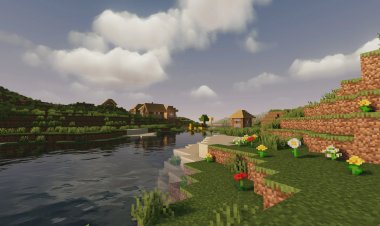
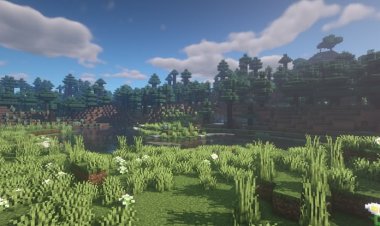
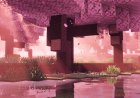
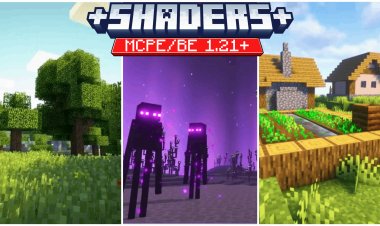
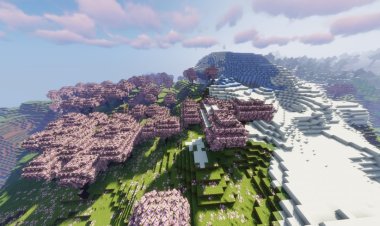
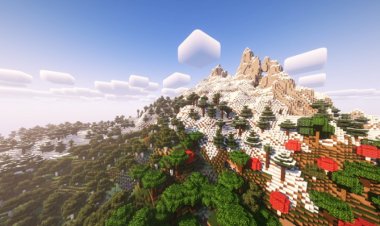
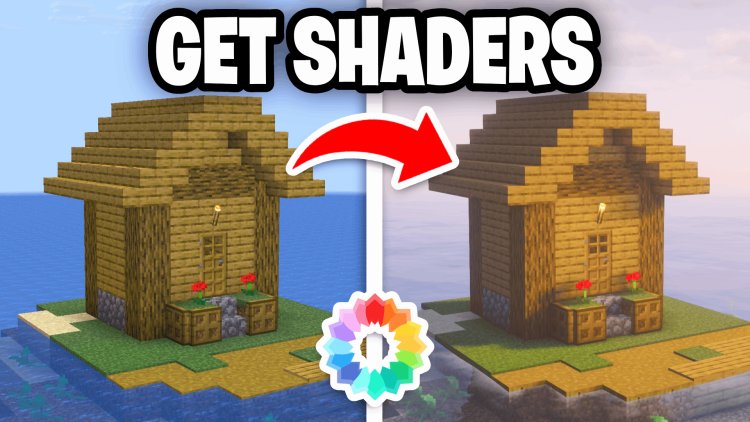
Shaders are one of the best ways to improve Minecraft's graphics, adding realistic lighting, dynamic shadows, reflections, waving leaves, enhanced water effects, and stunning visual upgrades. In this guide, we'll show you exactly how to download and install shaders for Minecraft 26.2 on PC using the Iris Shader Loader.
Whether you're looking for realistic shaders, high FPS shaders, or cinematic graphics, this tutorial will get you set up in just a few minutes.
Why Use Shaders in Minecraft 26.2?
Shaders transform the look of Minecraft by adding:
- Realistic lighting
- Dynamic shadows
- Better water reflections
- Enhanced sky effects
- Waving grass and leaves
- Improved clouds
- More immersive gameplay
Many players use shaders to make Minecraft look modern and realistic while still maintaining the classic gameplay experience.
Step 1: Download Iris Shader Loader
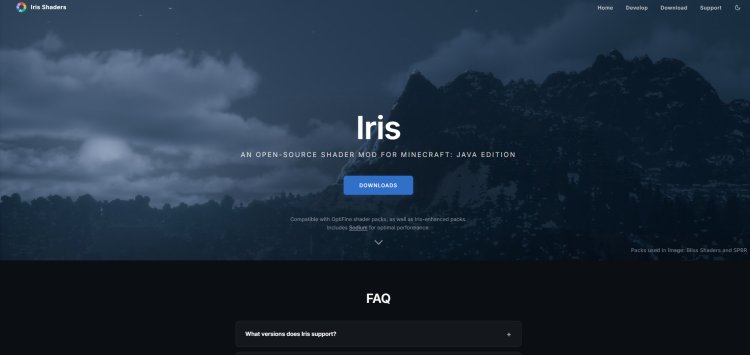
First, download the Iris Shader Loader.
Official Download:
https://www.irisshaders.dev/
Iris is currently one of the most popular shader loaders for Minecraft Java Edition because it offers excellent performance, compatibility, and support for modern shader packs.
Step 2: Download a Shader Pack
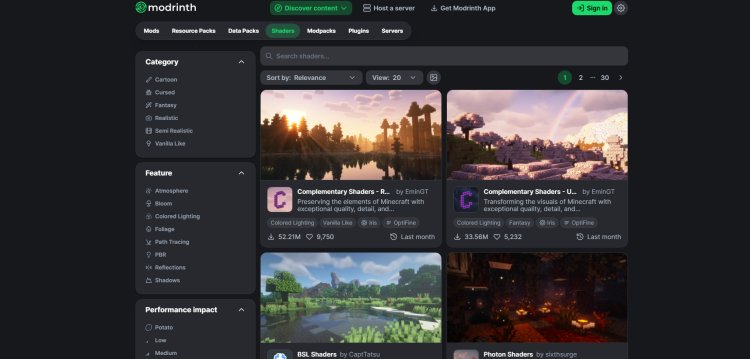
Next, download a shader pack that is compatible with Iris.
Shader Downloads:
https://modrinth.com/discover/shaders
Some popular shader packs include:
- Complementary Shaders
- BSL Shaders
- Sildur's Vibrant Shaders
- MakeUp Ultra Fast
- Bliss Shaders
Choose the shader that best matches your PC's performance and visual preferences.
Step 3: Install Java (If Needed)
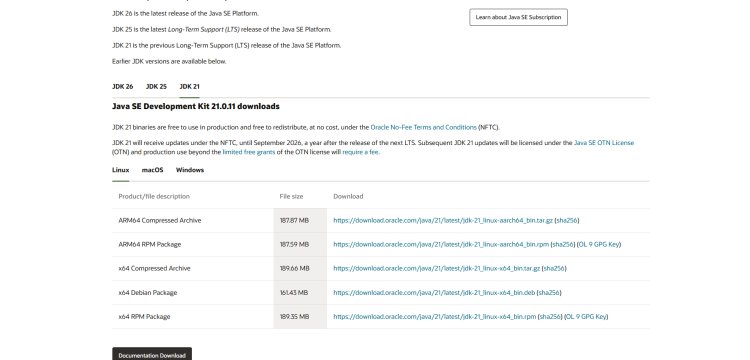
If Java is not already installed on your computer, download and install it.
Java Download:
https://www.oracle.com/java/technologies/downloads/#java21
Minecraft Java Edition and the Iris installer require Java to run properly.
Step 4: Install Iris for Minecraft 26.2
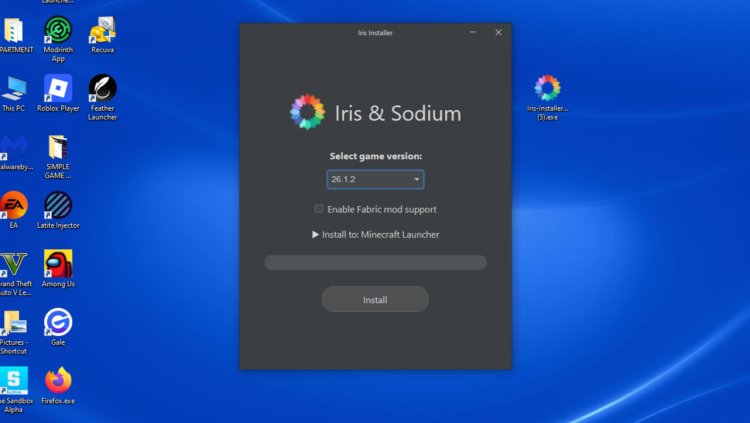
Locate the Iris installer you downloaded earlier.
- Right-click the Iris installer.
- Select Open With Java.
- Launch the installer.
- Choose your Minecraft version.
- Select Minecraft 26.2.
- Click Install.
Wait for the installation process to finish.
Step 5: Launch the Minecraft Launcher
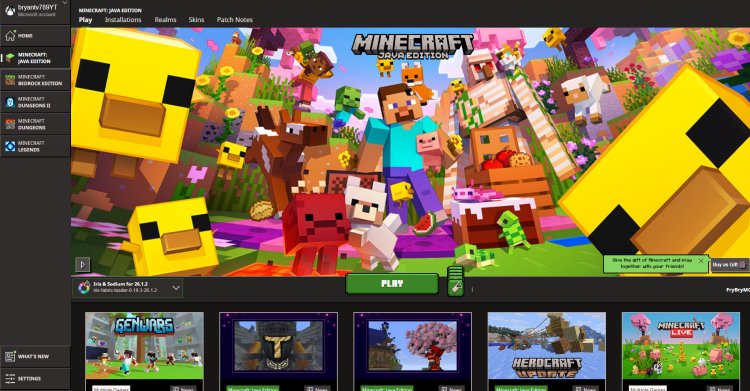
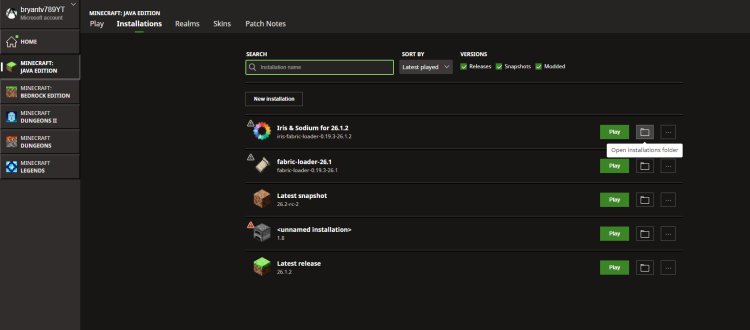
After Iris has been installed:
- Open the Minecraft Launcher.
- Click the Installations tab at the top.
- Look for the newly created Iris 26.2 installation profile.
If you don't see it immediately, restart the launcher.
Step 6: Add Your Shader Pack
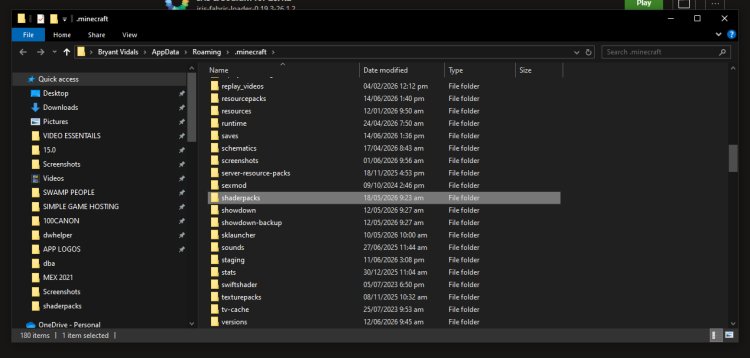
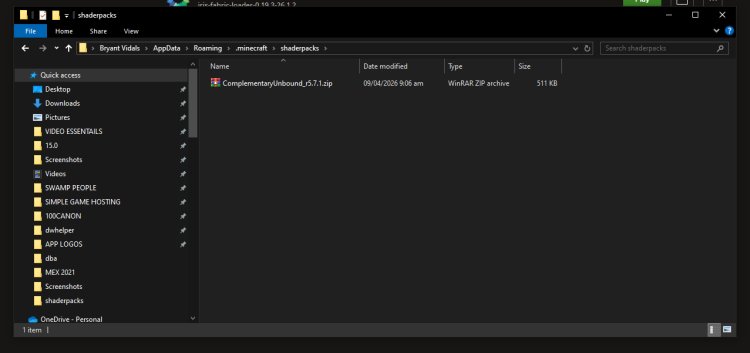
Now it's time to install your shader.
- Open the Minecraft Launcher.
- Locate the Iris 26.2 installation.
- Open the installation folder.
- Find the folder named:
shaderpacks- Open the shaderpacks folder.
- Drag and drop your downloaded shader ZIP file directly into the folder.
Do not extract the ZIP file unless the shader developer specifically instructs you to.
Step 7: Launch Minecraft
Launch Minecraft using the Iris 26.2 installation profile.
Once Minecraft loads:
- Join a world or server.
- Open the Settings menu.
Step 8: Enable Your Shader
To activate your shader:
- Open Settings.
- Go to Video Settings.
- Select Shaders.
- Choose the shader pack you installed.
- Click Apply.
Minecraft may take a few seconds to load the shader.
Once loaded, you'll immediately notice improved lighting, shadows, water effects, and overall visuals.
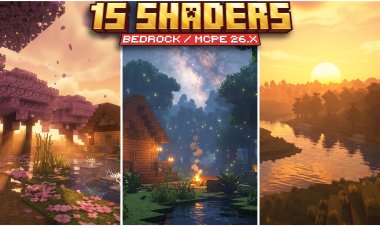
Best Shaders for Minecraft 26.2
Some of the most popular shader packs currently available include:
Complementary Shaders
Great balance between performance and visuals.
BSL Shaders
Beautiful lighting and realistic skies.
Sildur's Vibrant Shaders
Excellent performance with vibrant colors.
MakeUp Ultra Fast
Ideal for low-end PCs.
Bliss Shaders
Ultra-realistic visuals for powerful gaming systems.
Common Shader Installation Problems
Shader Not Showing Up
Make sure the shader ZIP file is placed directly inside the shaderpacks folder.
Minecraft Crashes
Update your graphics drivers and verify you're using a compatible shader version.
Low FPS
Try using lightweight shaders such as:
- MakeUp Ultra Fast
- Sildur's Enhanced Default
- Complementary Reimagined
Iris Profile Missing
Re-run the Iris installer and ensure Minecraft 26.2 is selected during installation.
Conclusion
Installing shaders in Minecraft 26.2 is easy with Iris Shader Loader. Simply download Iris, install Java if needed, choose a shader pack from Modrinth, place it in the shaderpacks folder, and activate it through Minecraft's shader settings. Within minutes, you'll completely transform Minecraft's graphics with realistic lighting, shadows, reflections, and immersive visual effects.
If you're looking for the best Minecraft 26.2 graphics experience, shaders are one of the most impactful upgrades available.
Frequently Asked Questions (FAQ)
Are shaders free for Minecraft 26.2?
Yes. Most shader packs available on Modrinth are completely free to download and use.
Do shaders work on Minecraft Java Edition?
Yes. Iris Shader Loader is designed specifically for Minecraft Java Edition.
What is the best shader for Minecraft 26.2?
Complementary Shaders and BSL Shaders are among the most popular choices for Minecraft 26.2.
Do I need Java to install Iris?
Yes. The Iris installer requires Java to run.
Where do I put shader files?
Place the shader ZIP file inside the shaderpacks folder created by Iris.
Can low-end PCs use shaders?
Yes. Lightweight shader packs like MakeUp Ultra Fast and Sildur's Enhanced Default are designed for lower-end hardware.
Why are my shaders not appearing in Minecraft?
Make sure the shader ZIP file is inside the shaderpacks folder and that you're launching Minecraft through the Iris installation profile.
Is Iris better than OptiFine for shaders?
Many players prefer Iris because it offers better performance, modern compatibility, and support for many popular shader packs.