How To Download Xray For Minecraft 26.1 – Full Step-by-Step Guide
 mcpecentraladmin
Introduction
Whether you're hunting for diamonds deep underground, searching for ancient debris in the Nether, or trying to locate cave systems fast, Xray is one of the most sought-after tools in Minecraft. And the good news? You don't need any mods, mod loaders, or complicated installs to get it working.
In this guide, we'll show you exactly how to download and install Xray for Minecraft 26.1 (Tiny Takeover) using the Xray Ultimate Texture Pack — the most popular and reliable Xray method available. It works by using Minecraft's built-in resource pack system, meaning it's quick to install, easy to toggle on and off, and requires zero modding experience.
Let's get into it.
What Is the Xray Texture Pack?
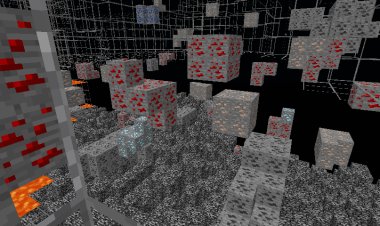
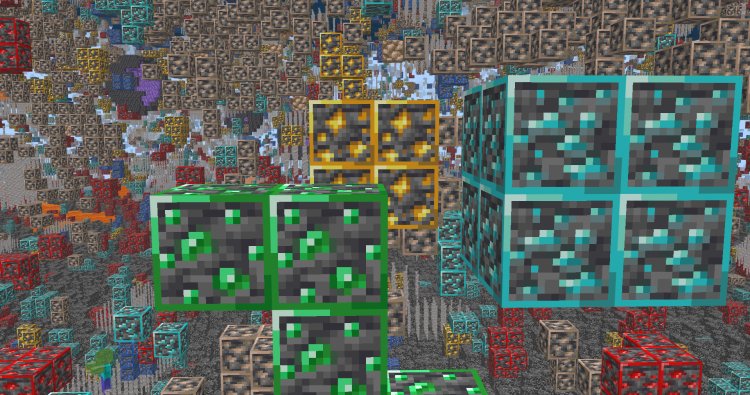
The Xray Ultimate Texture Pack works by making most blocks in Minecraft completely transparent, leaving only ores, chests, spawners, and other valuable blocks fully visible. This gives you a clear view straight through the ground to find exactly what you're looking for.
Because it uses Minecraft's native resource pack system rather than a mod, it is:
- Easy to install — no mod loader required
- Easy to toggle — turn it on and off from the resource pack menu at any time
- Compatible with Minecraft 26.1 out of the box
- Lightweight — no performance impact compared to mod-based Xray solutions
It's the cleanest and most beginner-friendly way to get Xray running in Minecraft 26.1.
How To Download Xray For Minecraft 26.1 — Step by Step
Step 1: Download the Xray Ultimate Texture Pack
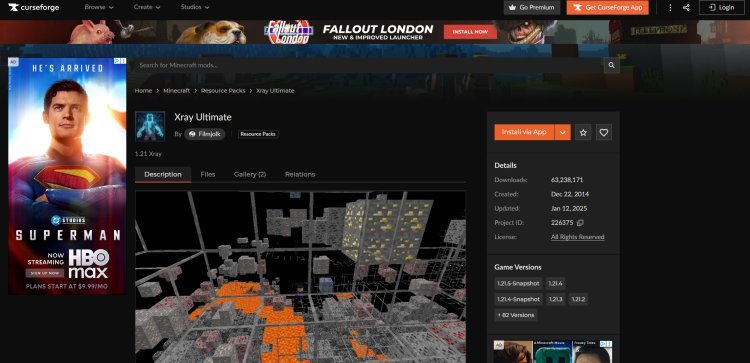
Start by downloading the Xray Ultimate Texture Pack from CurseForge. This is the most trusted and widely used Xray resource pack available: ???? https://www.curseforge.com/minecraft/texture-packs/xray-ultimate-1-11-compatible
On the CurseForge page, click the Files tab and look for the version that is compatible with Minecraft 26.1. Click the download button and save the .zip file to somewhere easy to find on your computer, like your Desktop or Downloads folder. Do not unzip the file — it needs to stay as a .zip for Minecraft to read it correctly.
Step 2: Open the Minecraft Launcher
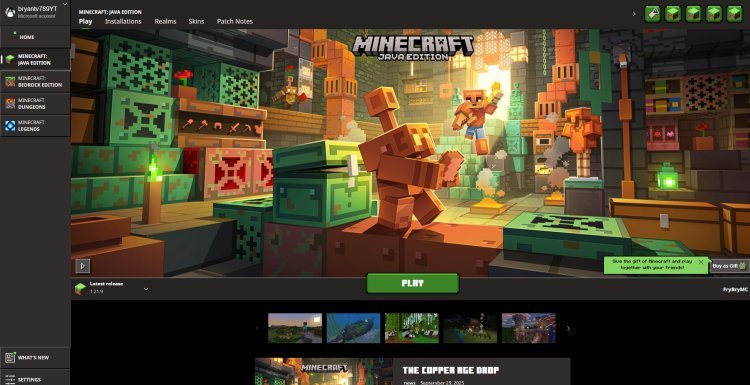
Once your download is complete, open your Minecraft Launcher. Make sure you are on Minecraft Java Edition version 26.1. You can verify your version in the Installations tab of the launcher. If you are not on 26.1, switch to that version before continuing — using a texture pack on the wrong version can cause visual glitches or the pack may not display correctly.
Click Play to launch the game and load into the Minecraft main menu.
Step 3: Open the Resource Pack Folder
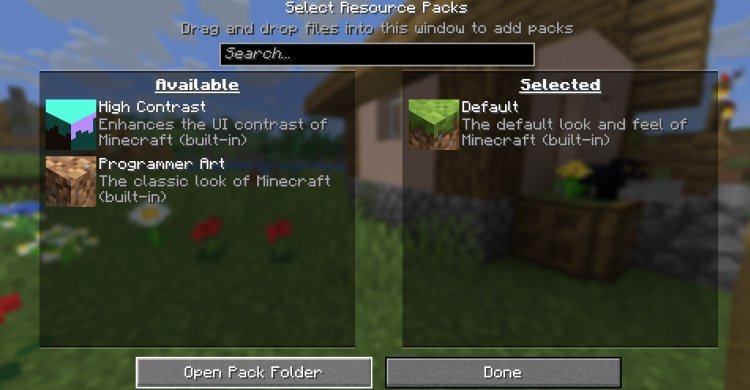
From the Minecraft main menu, navigate to:
Options → Resource Packs → Open Pack Folder
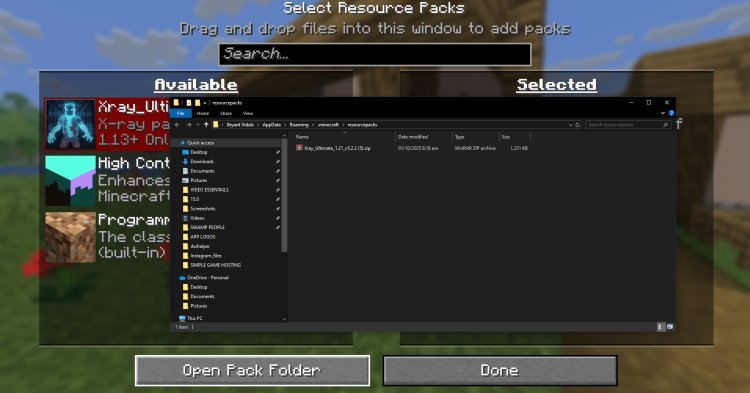
Clicking Open Pack Folder will open your computer's file explorer directly to the correct location — the resourcepacks folder inside your Minecraft directory. This is exactly where you need to place the Xray texture pack file.
Leave this folder open in the background — you'll need it in the next step.
Alternatively, you can navigate to the resourcepacks folder manually:
- Windows: Press Windows + R, type %appdata%\.minecraft\resourcepacks and hit Enter
- macOS: Go to ~/Library/Application Support/minecraft/resourcepacks
- Linux: Navigate to ~/.minecraft/resourcepacks
Step 4: Add the Xray Pack to Your Resource Packs Folder
Go back to the Xray Ultimate .zip file you downloaded in Step 1. Drag and drop the entire .zip file directly into the resourcepacks folder you opened in Step 3. Again — do not unzip it. Minecraft reads resource packs as .zip files natively and will not recognize an unzipped folder.
Once the file is inside the resourcepacks folder, go back to Minecraft. If the game was already open, you'll see a notification at the bottom of the Resource Packs screen saying new packs have been detected. If not, simply navigate back to Options → Resource Packs and the Xray Ultimate pack will now appear in your available packs list on the left side.
Step 5: Apply the Xray Texture Pack
In the Resource Packs menu, you'll see two columns — Available Resource Packs on the left and Selected Resource Packs on the right. Find Xray Ultimate in the left column and click the arrow button or double-click it to move it over to the right column (Selected Resource Packs).
Make sure Xray Ultimate is at the top of your selected packs list — resource packs higher up in the list take priority over packs below them. If another resource pack is above it, Xray may not display correctly.
Once it's selected and at the top, click Done. Minecraft will reload your resource packs, which takes just a second or two.
Step 6: Load Into Your World and Use Xray
Load into any Minecraft world or server. Once you're in-game, the Xray effect will be active immediately. Most solid blocks will appear transparent or invisible, and ores, chests, spawners, and other valuable blocks will be clearly visible through the ground.
Pro tips for using Xray in Minecraft 26.1:
- Adjust your render distance — a higher render distance lets you see ores and structures further away through the terrain, making Xray even more effective for exploration.
- Use fullbright — if your underground visibility is dark, combine Xray with a fullbright resource pack or adjust your in-game brightness to maximum for the clearest view.
- Toggle it on and off easily — go back to Options → Resource Packs at any time to quickly enable or disable Xray without restarting the game. This is handy if you want to switch back to your normal texture pack.
- Use it for cave and structure hunting — beyond just ore finding, Xray is excellent for spotting dungeons, mineshafts, strongholds, and ancient cities before you dig down to them.
Enjoy your Xray!
What Can You See With Xray in Minecraft 26.1?
Once Xray Ultimate is active, here's what becomes visible through the terrain:
Ores: Diamond, Emerald, Ancient Debris, Iron, Gold, Copper, Lapis Lazuli, Redstone, Coal
Structures & Blocks: Chests, Spawners, Ender Chests, Trapped Chests
Underground Features: Cave systems, Mineshafts, Strongholds, Ancient Cities, Dungeons, Amethyst Geodes
This makes Xray an incredibly powerful tool for both survival resource gathering and exploring Minecraft 26.1's world generation.
All Download Links (Quick Reference)
- Xray Ultimate Texture Pack: https://www.curseforge.com/minecraft/texture-packs/xray-ultimate-1-11-compatible
Frequently Asked Questions
Does Xray work on Minecraft 26.1? Yes. The Xray Ultimate Texture Pack is compatible with Minecraft 26.1 (Tiny Takeover). Make sure you download the correct file version from the CurseForge Files tab that matches your Minecraft version.
Do I need Fabric or Forge to use Xray? No. The Xray Ultimate Texture Pack uses Minecraft's built-in resource pack system, so no mod loader is required at all. It works on completely vanilla Minecraft 26.1.
Why is my Xray texture pack not working? The most common reasons Xray doesn't work are: the .zip file was unzipped before being placed in the resourcepacks folder, the pack version doesn't match your Minecraft version, or the pack isn't at the top of your selected resource packs list. Check all three of these first.
Can I use Xray on Minecraft servers? Xray texture packs are client-side and technically function on servers. However, many servers have anti-cheat systems that can detect unusual mining patterns associated with Xray use. Always check a server's rules before using Xray — it is banned on most competitive and survival servers.
Is Xray a mod or a texture pack? In this guide, Xray is installed as a texture pack (resource pack), not a mod. This makes it much easier to install — no mod loader, no Java downloads, no mods folder needed.
How do I turn Xray off? Go to Options → Resource Packs in-game and move the Xray Ultimate pack back to the left (Available) column, then click Done. Your textures will immediately return to normal.
Will Xray affect my game performance? No. Because Xray Ultimate is a texture pack and not a mod, it has virtually no impact on your game's performance or FPS.
Where is the resourcepacks folder on Windows? Press Windows + R, type %appdata%\.minecraft\resourcepacks and press Enter. This will open the folder directly.
Final Thoughts
Installing Xray for Minecraft 26.1 is one of the simplest mod-free upgrades you can make to your Minecraft experience. In just a few steps — download the pack, drop it in your resourcepacks folder, and apply it in-game — you'll have full Xray vision with zero performance impact and zero complicated installs.
Whether you're speedrunning for diamonds, hunting ancient debris, or just exploring what's hidden beneath Minecraft 26.1's new terrain, the Xray Ultimate Texture Pack gets the job done fast.
If this guide helped you out, share it with a friend who's been struggling to find diamonds. Happy mining.